

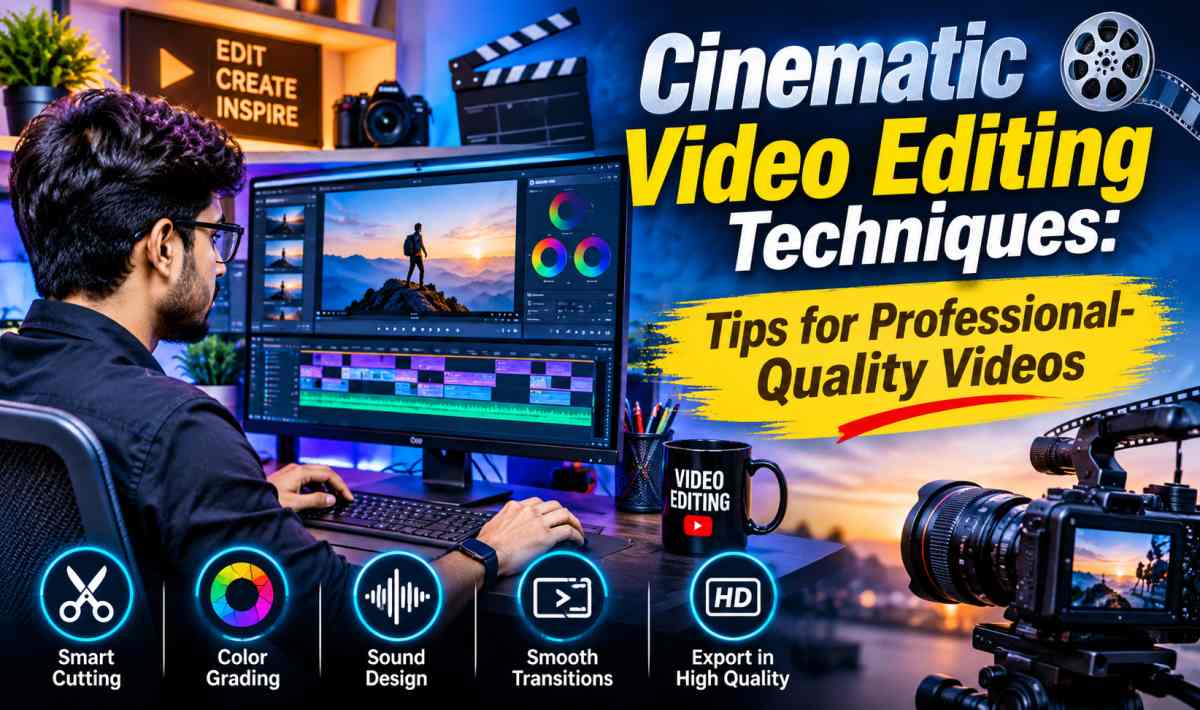
Cinematic Video Editing Techniques: Tips for Professional-Quality Videos
Introduction
Cinematic video editing is one of the most effective ways to transform ordinary footage into a visually engaging and emotionally powerful story. Whether you are creating YouTube videos, travel films, wedding highlights, short films, advertisements, or social media reels, the right editing techniques can make your content look more polished and professional.
In today’s digital world, audiences expect high-quality visuals, smooth transitions, balanced colors, clear audio, and compelling storytelling. However, professional-looking videos do not depend entirely on expensive cameras or advanced equipment. A good understanding of cinematic video editing, combined with creativity and consistent practice, can significantly improve the quality of your projects.
Modern editing software also makes professional techniques accessible to beginners and experienced creators. From color grading and sound design to smooth motion and storytelling, there are many ways to improve your video production workflow.
This guide explores the most important cinematic video editing techniques and explains how you can use them to create professional-quality videos.
What Is Cinematic Video Editing?
Cinematic video editing is the process of arranging footage, sound, music, visual effects, and color adjustments to create a film-like viewing experience. It focuses on storytelling, visual consistency, atmosphere, pacing, and emotional impact rather than simply joining clips together.
A cinematic video often features carefully selected shots, intentional camera movement, balanced compositions, natural-looking colors, immersive audio, and smooth transitions. These elements work together to communicate a story and keep viewers interested.
Cinematic editing is useful for filmmakers, content creators, photographers, marketing professionals, travel vloggers, wedding videographers, and businesses that want to present their products or services attractively.
1. Start With a Strong Storytelling Structure
Storytelling is the foundation of professional video editing. Even beautiful footage can feel uninteresting if the clips do not follow a clear direction.
Before editing, identify the main message of your video. Decide what viewers should understand, feel, or remember after watching it. Then organize your footage into a logical sequence.
A simple storytelling structure includes three stages:
- Beginning: Introduce the subject, location, or situation.
- Middle: Develop the story through important actions, details, or changes.
- Ending: Deliver a conclusion, emotional moment, or memorable final shot.
For example, a travel video could begin with a wide shot of a mountain destination, continue with scenes of exploring the area, and finish with a sunset or panoramic landscape.
Create a rough timeline before adding effects. Remove repetitive clips and keep shots that support the story. This approach makes editing more efficient and helps every scene serve a purpose.
2. Choose the Right Video Editing Software
Your editing software affects how efficiently you can work and which creative techniques you can use. The best option depends on your experience, computer specifications, project requirements, and budget.
Popular video editing programs include:
- Adobe Premiere Pro: A versatile editor for professional video projects, social media content, documentaries, and commercial productions.
- DaVinci Resolve: Known for its powerful color correction and grading tools, along with professional editing and audio features.
- Final Cut Pro: A popular option for Mac users who want an efficient editing workflow.
- CapCut: A convenient choice for beginners, short-form content, subtitles, and social media videos.
- Filmora: Offers an approachable interface and useful effects for creators who are learning video editing.
Beginners should focus on learning essential editing skills before switching between multiple applications. Understanding trimming, timeline organization, audio mixing, color correction, and exporting is more valuable than collecting software tools.
Choose an editor that runs smoothly on your device and supports the resolution, frame rate, and file formats required for your project.
3. Master Cutting and Pacing
Cutting determines how footage flows from one shot to another. Good pacing keeps the audience engaged without making the video feel rushed or unnecessarily slow.
One important cinematic technique is the cut on action. This means cutting between shots while a subject is performing an action. For example, you might show someone reaching for a door handle in one shot and opening the door in the next. The continuous movement makes the edit feel natural.
Other useful techniques include:
- Jump cuts: Remove unnecessary pauses or create a deliberate sense of speed.
- Match cuts: Connect shots through similar shapes, movements, colors, or compositions.
- J-cuts: Introduce the sound of the next scene before its picture appears.
- L-cuts: Allow audio from the previous scene to continue over the next shot.
- Montage editing: Combine short clips to communicate the passage of time or a series of activities.
Pacing should match the content. Fast cuts can work well for energetic sports videos or promotional reels, while longer shots may suit travel films, interviews, and emotional storytelling.
Avoid cutting at exactly the same interval throughout a video. Varying shot lengths creates a more natural rhythm and allows important moments to receive attention.
4. Use Cinematic Color Correction and Color Grading
Color is one of the most recognizable elements of cinematic video editing. It influences mood, supports visual storytelling, and helps footage from different cameras look consistent.
Color correction and color grading are related but different processes.
Color correction fixes technical problems such as incorrect white balance, inconsistent exposure, unwanted color casts, and mismatched shots.
Color grading creates a deliberate visual style through adjustments to contrast, saturation, shadows, highlights, and color relationships.
For a professional workflow, correct exposure and white balance first. Make skin tones look natural and ensure that important details remain visible in bright and dark areas. Then apply a creative grade that supports the subject.
For example, warm highlights can create a welcoming atmosphere in a family film, while cooler tones may support a dramatic urban sequence. A travel video might benefit from vibrant but realistic landscapes.
Popular tools such as DaVinci Resolve provide detailed controls for curves, color wheels, scopes, and selective adjustments. Many other editors also offer useful grading tools.
Avoid applying the same strong filter to every clip without checking the results. Excessive saturation, crushed shadows, unnatural skin tones, and clipped highlights can make a video look less professional. Consistency is more important than copying a popular color preset.
5. Improve Composition Through Shot Selection
Cinematic editing depends partly on the quality and variety of the shots you select. A sequence becomes more interesting when it combines different perspectives instead of repeating the same framing.
Useful shot types include:
- Wide shots: Establish a location and show the surrounding environment.
- Medium shots: Present subjects and their actions clearly.
- Close-ups: Emphasize facial expressions, objects, or important details.
- Extreme close-ups: Draw attention to small visual elements.
- Over-the-shoulder shots: Help viewers understand a conversation or point of view.
- Detail shots: Show hands, textures, equipment, food, or environmental features.
When organizing footage, consider how each shot relates to the next. A wide shot followed by a close-up can introduce detail and create visual interest.
The rule of thirds can also help when selecting or reframing footage. Imagine dividing the frame into nine equal sections and placing important subjects near the lines or intersections.
However, composition rules are guidelines rather than strict requirements. Centered framing, symmetry, negative space, and unusual angles can be effective when they support the story.
6. Create Smooth and Purposeful Transitions
Transitions connect shots and help maintain continuity. Professional editing often relies on simple cuts because they keep attention on the story.
Useful transitions include:
Straight cuts: The most common transition, ideal for clear and direct storytelling.
Cross dissolves: Gradually blend two shots, often suggesting the passage of time or a gentle change in mood.
Fade-ins and fade-outs: Move between a blank or black screen and the footage, commonly used at the beginning or end of a sequence.
Whip transitions: Use fast directional movement to connect energetic shots when the motion feels intentional.
Speed-ramped transitions: Change playback speed around an action to create a dynamic effect.
Transitions should have a clear purpose. Using too many spins, flashes, zooms, and animated effects can distract viewers from the content.
Try matching movement, direction, brightness, or color between adjacent clips. A subject moving from left to right in one shot, for example, may connect naturally with another shot continuing in the same direction.
For a polished result, prioritize continuity and timing instead of relying on effects to make every cut look impressive.
7. Use Slow Motion and Speed Ramping Carefully
Slow motion emphasizes movement and gives viewers more time to appreciate important moments. It is useful for sports, dancing, travel scenes, product demonstrations, weddings, and action sequences.
For the smoothest results, record at a frame rate higher than your intended delivery frame rate. For example, footage recorded at 60 frames per second can be slowed on a 30 fps timeline to approximately half speed without duplicating frames.
Speed ramping involves changing playback speed within a clip. You might begin at normal speed, slow down at a key moment, and accelerate again to maintain energy.
To make speed changes feel natural, use gradual speed curves rather than abrupt changes unless a sharp effect is intentional. Align the slow-motion section with a meaningful action or musical beat.
Remember that simply slowing ordinary footage does not always create smooth motion. The original frame rate, shutter speed, motion blur, and editing software all influence the final result.
8. Make Sound Design a Priority
Audio is a major part of the cinematic experience. Excellent visuals can feel unfinished when dialogue is unclear, music is too loud, or background sounds are missing.
A professional audio workflow usually includes several layers:
- Dialogue: The main spoken content, which should remain intelligible.
- Music: Supports mood, energy, and pacing.
- Ambience: Provides a sense of location, such as birds, traffic, wind, or room tone.
- Sound effects: Emphasize meaningful actions, transitions, and visual events.
- Audio transitions: Smoothly connect different scenes.
Start by cleaning up dialogue and balancing its volume. Reduce distracting background noise when possible, and use equalization or compression carefully to improve clarity and consistency.
Add background music at a level that supports rather than overwhelms speech. Lower the music during important dialogue and raise it when the visuals need additional emotional energy.
Sound effects should feel connected to what viewers see. A subtle whoosh may support a fast transition, while natural environmental sounds can make a travel scene feel more immersive.
Always check the audio with headphones or reliable speakers. Avoid sudden volume changes, harsh peaks, and music that competes with the main message.
9. Synchronize Editing With Music
Music synchronization is an effective technique for promotional videos, montages, travel films, and social media content.
Begin by listening to the selected track and identifying its rhythm, major beats, changes in energy, and emotional turning points. Place timeline markers at useful musical moments.
Then align selected cuts or visual changes with those markers. A strong beat might introduce a new location, while a quieter section could support a slow-motion shot or emotional close-up.
However, not every cut should occur on a beat. Cutting exclusively to the music can make a sequence predictable. Allow dialogue, natural movement, and storytelling to determine some edit points.
Choose music that matches the purpose of the video and confirm that you have the appropriate license or permission to use it. Copyright-safe music is especially important for monetized videos, advertisements, and business content.
10. Add Subtitles, Titles, and Motion Graphics
Text and graphics help viewers understand your content, especially when watching on mobile devices or with the sound turned off.
Useful additions include opening titles, location labels, speaker names, subtitles, captions, and end screens. Motion graphics can also explain complex information or highlight important features.
Choose readable fonts and maintain consistent typography throughout the video. Use a clear visual hierarchy so that the main title stands out while supporting text remains secondary.
Make sure subtitles have sufficient contrast against the background. A subtle shadow or solid background panel can improve readability when footage is visually busy.
Keep text away from the edges of the frame, where it may be cropped by different displays or covered by social media interface elements.
Animations should be restrained and consistent. Smooth fades, simple position changes, and subtle scaling often look more professional than complicated animated effects.
For accessibility, review captions for accuracy and synchronize them carefully with the spoken words.
11. Stabilize Footage and Manage Camera Movement
Shaky footage can distract viewers, particularly during interviews, product demonstrations, and establishing shots.
Many editing programs include stabilization features that analyze motion and reduce unwanted camera shake. Apply stabilization selectively and review the result at full resolution.
Strong stabilization may crop the image, distort edges, or create unnatural movement. Adjust the strength until the footage looks stable without losing too much of the original frame.
When appropriate, use keyframes to create controlled digital pans, zooms, or reframing movements. These adjustments can add subtle motion to a static shot.
Keep movements smooth and purposeful. Excessive digital zooming and constant camera movement can make a video feel restless. Sometimes the most cinematic choice is to leave a well-composed shot untouched.
12. Organize Your Editing Workflow
An organized project saves time and makes revisions easier. Before editing, create folders for video footage, audio, music, graphics, project files, and exports.
Rename clips descriptively when necessary, and use bins or folders to group footage by scene, camera, or location. Create a rough cut first, refine the story second, and add color grading, sound design, and visual effects afterward.
A practical editing workflow includes:
- Import and organize the footage.
- Review clips and select the best takes.
- Build a rough cut around the story.
- Refine pacing and transitions.
- Correct colors and exposure.
- Mix dialogue, music, and sound effects.
- Add titles, captions, and visual effects.
- Review the full video and export the final version.
Save project versions regularly and back up important media. This reduces the risk of losing work and allows you to return to earlier edits if a revision causes problems.
13. Export Videos With the Right Settings
Export settings affect the final appearance, file size, and compatibility of your video.
For many online projects, H.264 in an MP4 container is a practical choice because it offers broad compatibility. H.265 can provide efficient compression when supported by the target platform and playback devices.
Match the export resolution to the project and intended use. Full HD at 1920 × 1080 is suitable for many online videos, while 4K at 3840 × 2160 is useful when higher resolution is required.
Keep the frame rate consistent with the intended delivery format unless there is a specific reason to change it. Choose a suitable bitrate for the resolution, frame rate, and amount of motion in the footage.
Before exporting, check the entire timeline for missing media, unintended black frames, spelling errors, audio clipping, abrupt cuts, and inconsistent color.
Watch the exported file rather than relying only on the editing preview. This final quality check can reveal problems that are easy to miss during editing.
14. Common Cinematic Video Editing Mistakes to Avoid
Even experienced editors can weaken a video by overusing effects or overlooking basic details.
Avoid these common mistakes:
- Overusing transitions: Too many effects distract from the story.
- Applying excessive color grading: Unnatural skin tones and oversaturated colors reduce realism.
- Ignoring audio quality: Poor dialogue levels can make professional visuals feel amateur.
- Using slow motion everywhere: Reserve it for moments that benefit from emphasis.
- Adding unnecessary footage: Remove clips that do not contribute to the message.
- Choosing music without checking usage rights: Unlicensed music can create copyright problems.
- Exporting with unsuitable settings: Incorrect resolution or compression can reduce quality.
- Skipping the final review: Small errors can damage the overall impression.
The goal is not to demonstrate every editing technique in one project. Instead, choose the techniques that best support the story and use them consistently.
15. How AI Is Changing Cinematic Video Editing
Artificial intelligence is making several editing tasks faster and more accessible. Depending on the software, AI-assisted features may include automatic transcription, subtitle generation, background-noise reduction, scene detection, subject masking, object removal, and intelligent reframing.
These tools can reduce repetitive work and help creators spend more time on storytelling and creative decisions.
For example, automatic transcription can generate a starting point for subtitles, while subject masking can simplify selected color adjustments. AI-based noise reduction may improve dialogue recorded in less-than-ideal environments.
However, automated results still require human review. Captions can contain errors, background removal can produce visual artifacts, and automatic edits may overlook the emotional importance of a scene.
Use AI as an assistant rather than a replacement for creative judgment. The strongest results combine efficient technology with careful pacing, visual consistency, and thoughtful storytelling.
Conclusion
Cinematic video editing is a combination of technical knowledge, creative judgment, and effective storytelling. By mastering cutting techniques, color correction, sound design, transitions, shot selection, and export settings, creators can significantly improve the quality of their videos.
The best results do not necessarily require expensive equipment or complicated effects. They come from understanding the purpose of every shot, maintaining visual and audio consistency, and choosing techniques that support the story.
Start with the fundamentals, practice on short projects, and review your work critically. As your skills develop, experiment with color grading, speed ramping, motion graphics, and AI-assisted tools.
Whether you are producing social media reels, travel films, wedding videos, documentaries, or commercial content, a thoughtful editing workflow can help you create engaging, polished, and professional-quality videos.